
Cluster board
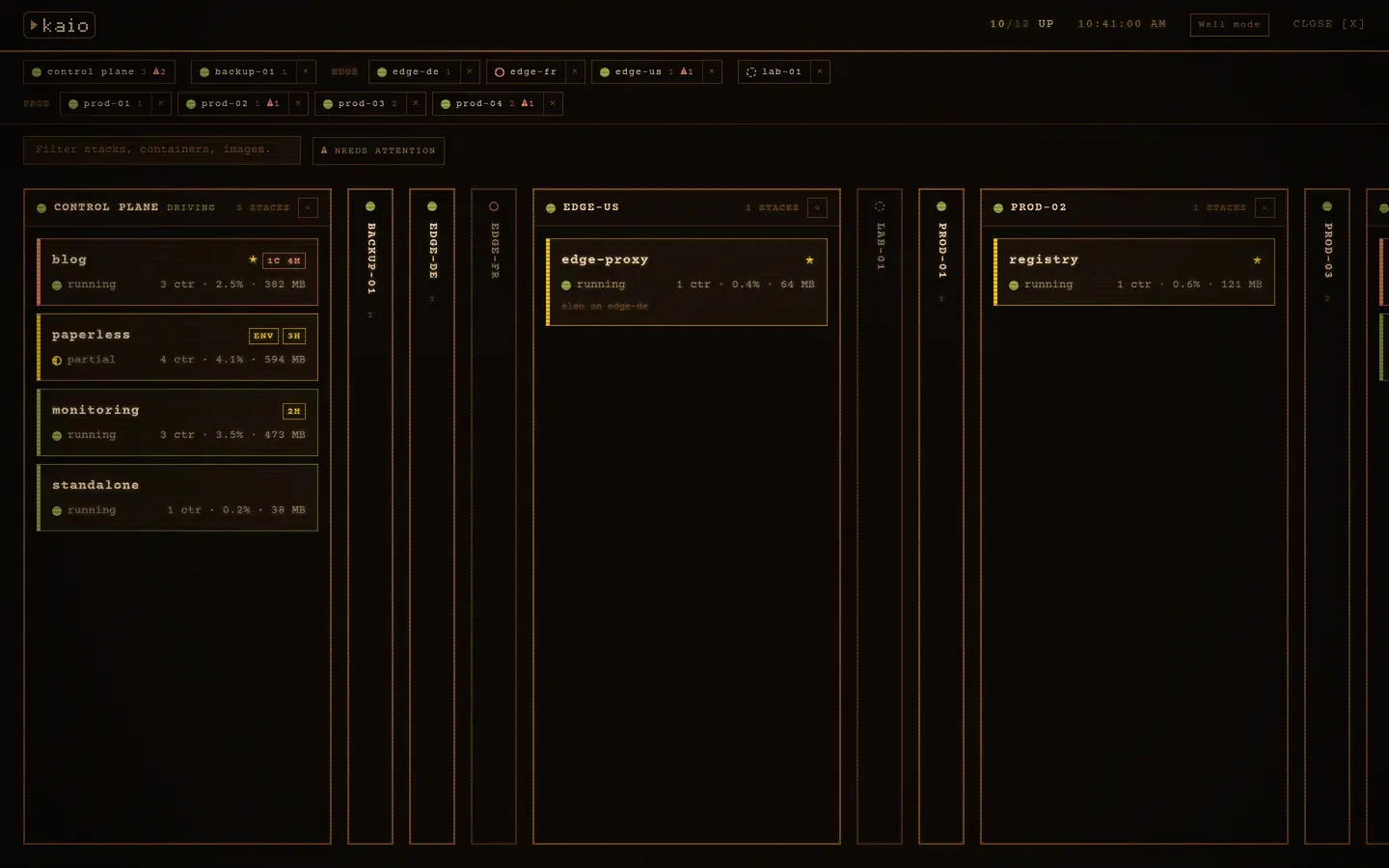
The cluster board puts every server that joined the cluster side by side, one column each, and every stack on it as a card. It answers at a glance what runs where and what needs you, and it is where a stack moves from one server to another: pick up its card, drop it on the server it goes to.
Opening it
Section titled “Opening it”| From | How |
|---|---|
| The top bar | Manage → Cluster board, the last entry, set apart from the panels |
| The command palette | Ctrl+K, then cluster, or Cluster board: <server> to land on that server’s column |
| An address | /cluster opens the board, /cluster/<server> opens it on that server’s column |
The board has its own address so that it can be shared, bookmarked, or left on a wall screen. The address follows the column you move to, so a copied link reopens where you were, and the browser’s back button closes the board.
It is meant to be opened on the control plane, the server the others joined. On a node that nothing joined, it has a single column: that server.
Reading it
Section titled “Reading it”The server you drive comes first, marked driving, then the other servers by
name. Each card is one stack, and its left edge says what state it is in:
| Edge | Means |
|---|---|
| Red | A critical CVE in one of its images |
| The status colour | Not fully up: partial, paused, exited or not started |
| Yellow | An image update is waiting, or its variables are saved but not applied |
| Green | Nothing to do |
Its badges count the critical and high CVEs (1C 4H), ★ marks a pending
update and env unapplied variables, and the line underneath gives its state,
its container count, its CPU and its memory. The count at the top says how many
stacks of the whole cluster are fully up. The board refreshes every 15 seconds.
Moving a stack
Section titled “Moving a stack”Drag a card onto another server’s column, or onto that server’s chip in the bar at the top, and the copy dialog opens with that server already picked as the destination. Everything else works as it does from the stack menu: the name it takes there, whether its volume data comes along, the ports to move out of the way, the variables to change on the way, and each step followed until it lands. The source is never stopped or touched.
A card can be dragged from any column, not only the server you drive, and
dropped on any server that is online. While a card is in the air, every column
and chip that accepts it is outlined with a dashed green border. Copying needs
the write level; below it, the cards do not move.
Finding your way on a large cluster
Section titled “Finding your way on a large cluster”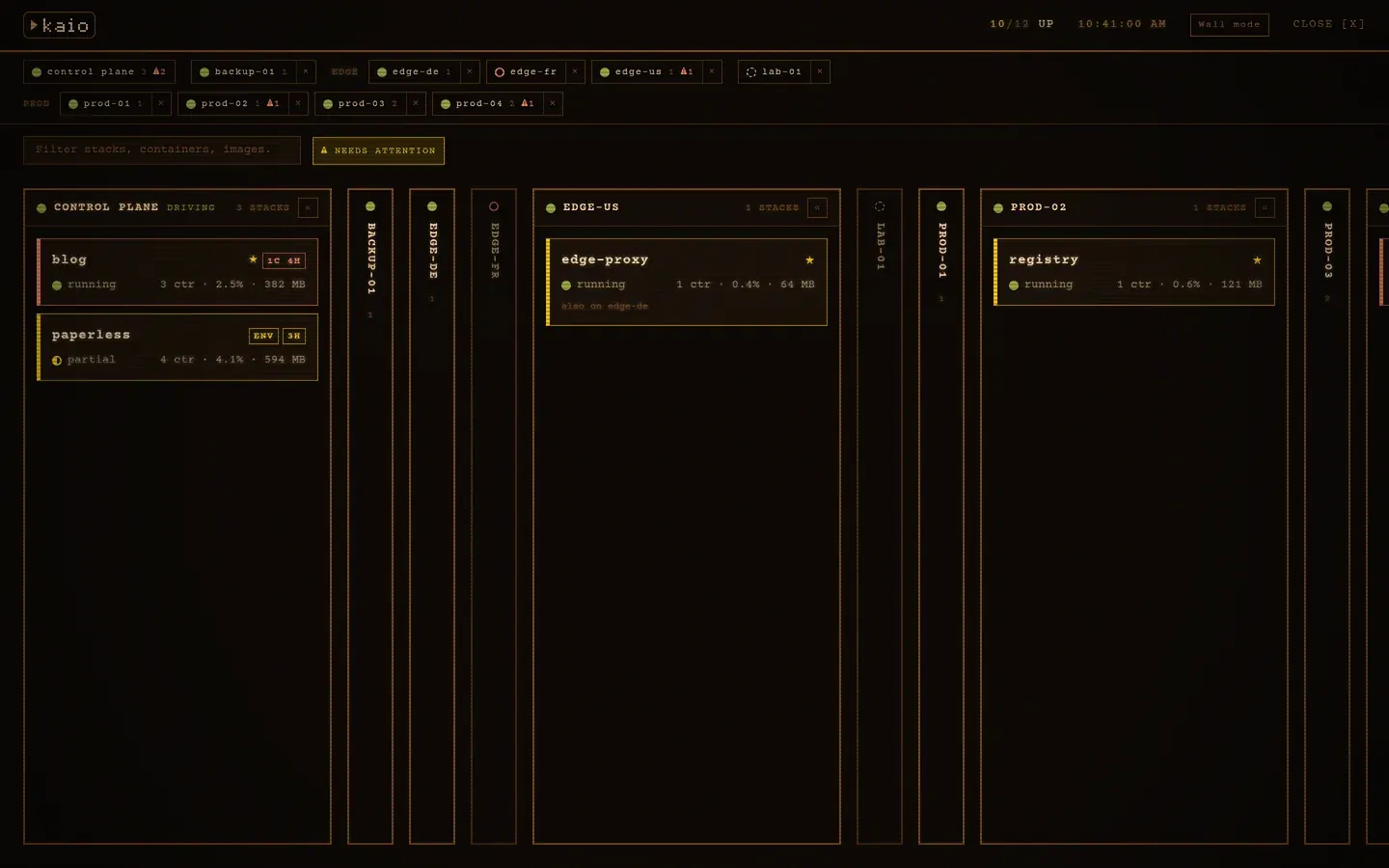
| Control | What it does |
|---|---|
| Server bar | One chip per server under the logo: its status dot, its stack count, and ⚠ with the number of stacks that need attention. Click a chip to scroll its column into view. Servers whose names share a prefix before -, _ or . (prod-01, prod-02) are grouped under it |
| Drop on a chip | A card dropped on a chip copies the stack to that server, without scrolling to its column |
✕ on a chip |
Hides that server’s column. The chip stays, struck through, and a click brings it back. N hidden, show all restores every column. The choice is kept in this browser |
| Filter | Keeps the stacks whose name, containers or images contain the text, on every server. / puts the cursor in it, Escape clears it |
| ⚠ Needs attention | Keeps only the stacks that are not fully up, wait for an image update or for their variables, or carry a critical CVE. Kept in this browser |
| Folded columns | A server with nothing to show folds on its own into a narrow band: every stack is fine, nothing matches the filter, or it is not online. The server you drive never folds on its own. « in a column’s header folds any column by hand, and that choice is kept in this browser. Click the band to unfold it. A band keeps its status dot and its ⚠ count, and still accepts a drop |
← → |
Move from one server to the next, highlighting its column |
A stack’s history
Section titled “A stack’s history”Click a card to open its timeline over the board: its versions, its events, its containers’ changes and its scans on one axis, read from the server the card is on. Its rollback acts on that server too, and closing it brings you back to the board where you left it.
To drive another server instead, click its name at the top of its column. That reloads the page on that server, as the server selector in the top bar does.
Wall mode
Section titled “Wall mode”Wall mode goes full screen with larger cards, for a screen left on the wall. It only displays: the cards can be neither dragged nor clicked there, so leave it to copy a stack or open its timeline. Nothing folds, and when the servers do not fit the screen they are shown a page at a time, turning every 20 seconds, with the servers that need attention on the first pages. The header shows which page is up, and the chips of the servers on it are outlined.
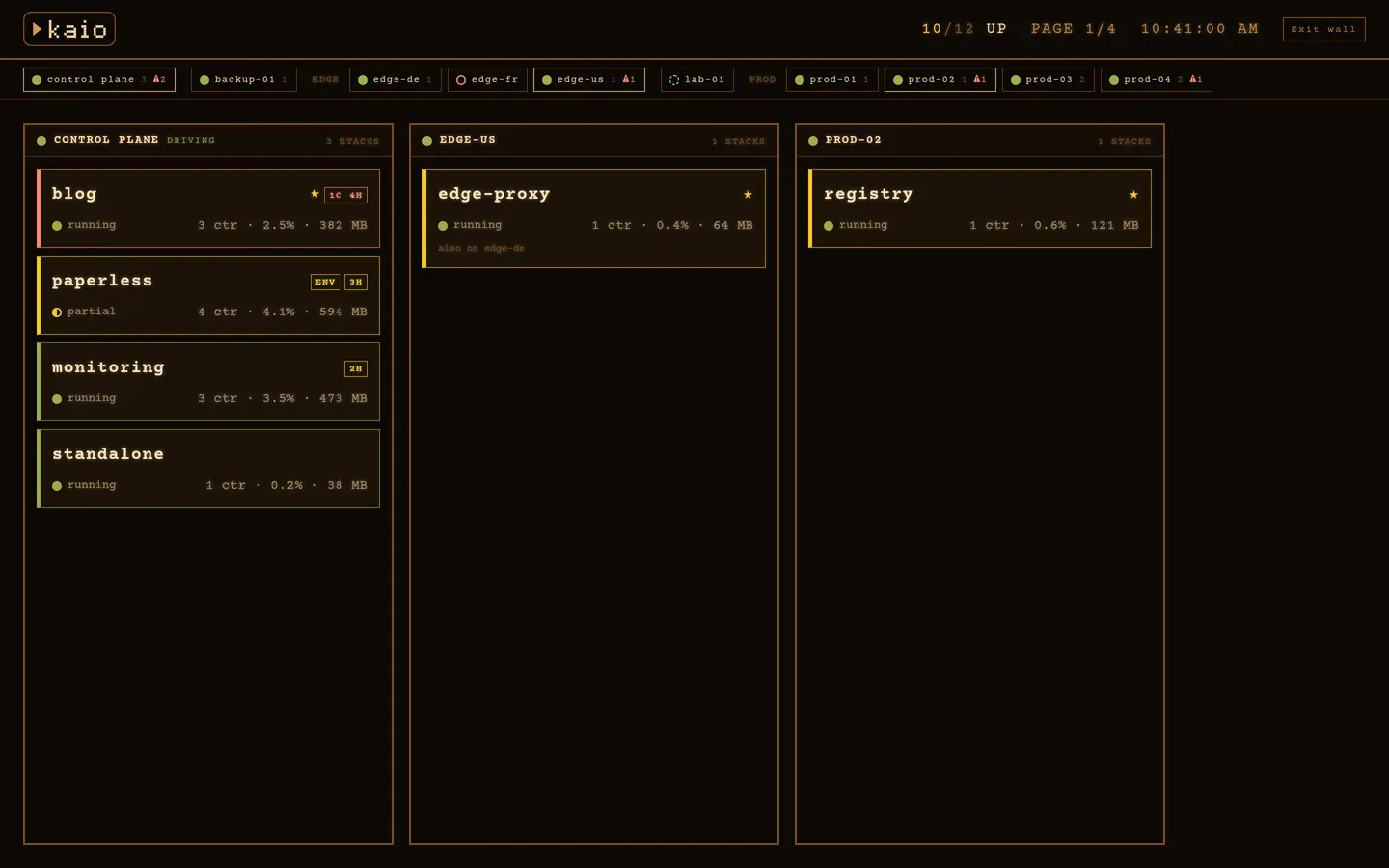
To leave a screen on the board, point its browser at /cluster and press
Wall mode.
Limits
Section titled “Limits”- Dragging uses the browser’s own drag and drop, so it works with a mouse or a trackpad, not with a finger on a tablet or a phone.
- A server that is not
onlinekeeps its column, folded and greyed out, and accepts no drop. - The timeline shows the latest 100 events its server keeps, across every stack.
Related
Section titled “Related”- Multiple servers, how a server joins the cluster
- Copying a stack, what a copy carries and what stops it
- Web dashboard, every other control of the browser interface
Kaio, built by Régis Gaidot